
 Black Steel Doors
 Woodstock Campers
 Phillips Joinery
Secure your WordPress site by doing five things without delay: update core, themes and plugins; force HTTPS with proper TLS settings; confirm you have a recent, tested backup; lock down logins with strong passwords and two-factor authentication; and put your site behind a reputable host or a web application firewall with basic monitoring switched on. Everything else in this guide builds on those five.
TL;DR:
- Ensure all WordPress core files, themes, and plugins are updated regularly, prioritizing testing updates on staging environments before going live.
- Use strong, unique passwords with two-factor authentication for all admin and publishing accounts, and routinely audit user access, removing inactive or unnecessary accounts.
- Harden server and file security by configuring proper permissions, disabling file editors, securing configuration files, and implementing security headers like HSTS and Content Security Policy.
- Choose hosting providers with strong isolation, reliable patching, standard backups, and clear security responsibilities, and implement a web application firewall with a managed WordPress rule set.
- Maintain offsite backups, test restore procedures quarterly, and use multi-factor authentication and malware scans to defend against ransomware while monitoring login attempts and suspicious activity.
Table of Contents
- Keep WordPress, plugins and themes updated
- Authentication, accounts and access control
- Hardening core files and server configuration
- Hosting, CDN and web application firewalls
- Backups, restore testing and ransomware-resistant practices
- Monitoring, logging and incident response
- Plugins, themes and supply-chain hygiene
- Vulnerability management and ongoing governance
- Database security best practices, including prefix changes and access restrictions
- Disable file editing within the WordPress dashboard
- Security considerations for REST API and XML-RPC
- Why defence-in-depth is the sensible approach for small teams
- AMW Media services for secure WordPress sites
- Sources
- FAQ
Keep WordPress, plugins and themes updated
WordPress only backports security fixes to actively supported branches, so running an old version means you miss the patches that matter most. According to WordPress, the platform has shipped automatic background updates for minor and security releases since version 3.7, but major version upgrades still need a human to approve them.
A sensible update routine looks like this:
- Test the update on a staging copy of the site first, especially if you run custom theme code or several interacting plugins.
- Take a full backup (files and database) before touching the live site.
- Update core, then plugins, then themes, checking the site between each step rather than all at once.
- Clear any caching layer and manually check key pages, the checkout flow if you sell anything, and the admin dashboard.
Leave automatic updates switched on for minor and security releases. That part of the system is safe by design and closes the gap between a vulnerability being disclosed and your site being exposed. Automatic major upgrades are riskier because they can change plugin compatibility overnight, so keep those manual and scheduled.
If an update fails, it is usually a file permissions or ownership issue rather than anything sinister. Check that your web server user owns the WordPress files, restore from your pre-update backup if the site is broken, and apply the update again manually via SFTP if the dashboard update keeps failing. WordPress.org’s guide to updating covers the manual recovery steps, including removing a leftover .maintenance file that can leave a site stuck mid-update.
If you manage several client sites, staged rollouts matter even more. Our website migration checklist covers the staging and testing discipline we use before any platform change goes live.
Pro Tip: Keep a simple changelog of what you updated and when. It takes two minutes and saves hours when something breaks three weeks later and you need to work out what changed.
Authentication, accounts and access control
Weak logins are still one of the easiest ways into a WordPress site, and the fix is mostly procedural rather than technical. The ICO’s guidance on passwords in online services expects organisations to protect login pages with HTTPS and apply sensible password controls as part of data protection by design.
Put these controls in place:
- Require long passwords generated and stored in a password manager rather than memorised short ones, and block known breached passwords where your login plugin supports it.
- Turn on two factor authentication for every account with publishing or admin access, preferring an authenticator app or a WebAuthn hardware key over SMS codes.
- Audit user accounts every few months and remove anyone who no longer needs access, including old contractor or agency logins.
- Apply least privilege: most contributors need the Editor or Author role, not Administrator.
- Add login rate limiting and short lockouts after repeated failed attempts, with a CAPTCHA as a backstop rather than the first line of defence, since overly aggressive lockouts can lock out real users too.
Privileged accounts, meaning anyone who can install plugins or edit code, deserve the strongest protection you can manage, ideally a hardware security key rather than an app-based code.
Pro Tip: Set a recurring calendar reminder to review your user list quarterly. Dormant admin accounts are one of the most common things we find when auditing a client’s site for the first time.
Hardening core files and server configuration
Beyond logins, the files and settings that run WordPress need their own protection. Start with wp-config.php, which holds your database credentials and secret keys. Move it one level above the web root where your hosting setup allows it, and make sure it is not readable by other sites on shared hosting.
Practical hardening steps:
- Set file permissions to 644 for files and 755 for directories as a general rule, tightening further where your host recommends it.
- Disable the built-in theme and plugin file editor in the dashboard, since it gives an attacker who gains admin access a direct route to running code.
- Secure your
.htaccessfile (or the equivalent nginx block) to deny access to sensitive paths likewp-config.php,.gitfolders and backup files left on the server by mistake. - Add security headers: HSTS to force HTTPS, X-Frame-Options to prevent clickjacking, and X-Content-Type-Options to stop browsers guessing file types.
- Roll out a Content Security Policy in report-only mode first, watch the browser console for what it would have blocked, then switch to enforcing once you are confident nothing legitimate breaks.
The GDS security overview for websites recommends exactly this report-only-then-enforce approach for CSP, since a misconfigured policy can silently break scripts, fonts or embedded content.
One misconfigured plugin setting can expose raw file paths that should never be public. Some plugins unintentionally expose direct file URLs through “redirect to file” style features, so it is worth testing unauthenticated access to known media paths after installing anything that touches file handling.
Hosting, CDN and web application firewalls
Your hosting environment does a lot of the heavy lifting before an attack ever reaches WordPress itself. When choosing or reviewing a host, check for:
- Account isolation from other customers on shared infrastructure, so a compromised neighbour cannot reach your files.
- A clear patching responsibility split: who patches the server operating system versus who patches WordPress itself.
- Backups included as standard, stored separately from the live server.
- Documented access controls for the hosting account itself, including who on your team can reach it.
- A support SLA that tells you how quickly you can expect help during an incident, not just during a sales call.
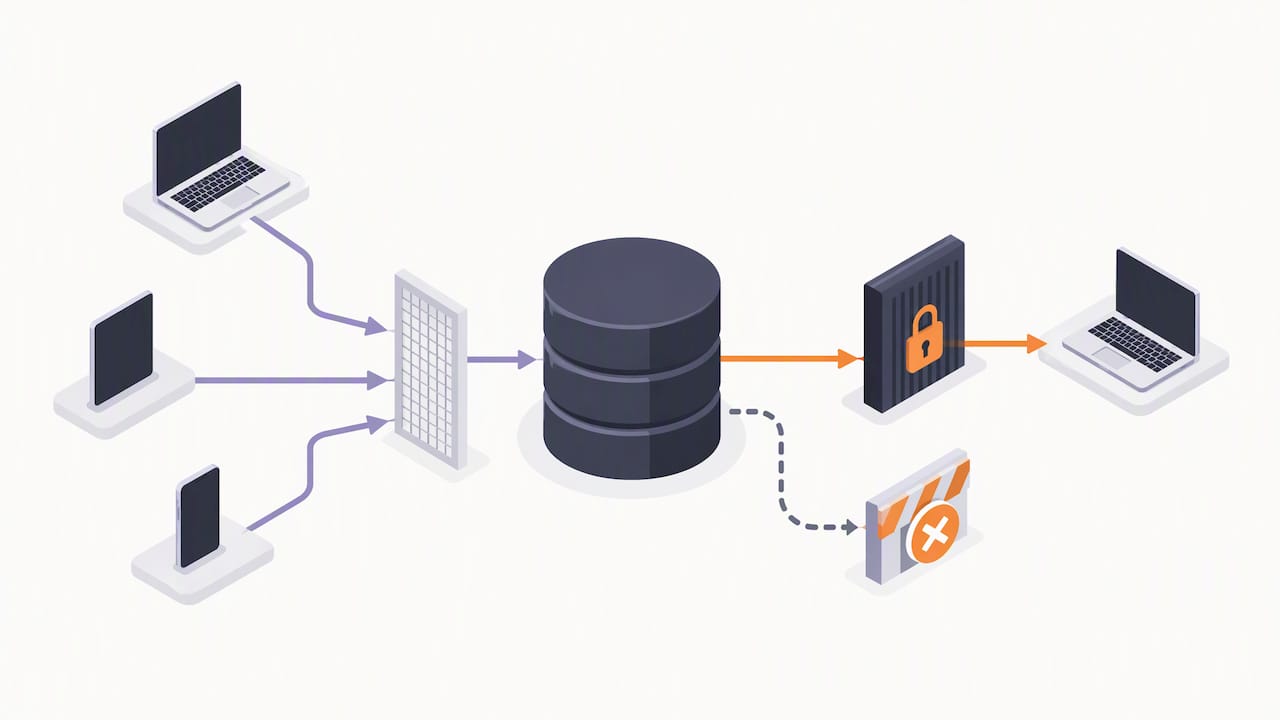
A CDN with a web application firewall sitting in front of your site filters out a lot of noise before it reaches your server: known bad bots, basic SQL injection attempts and brute force login traffic. Configure it to hide your origin server’s real IP address and, where the provider offers it, turn on a managed WordPress rule set rather than a generic one.
On the DNS side, keep your registrar account itself secured with two factor authentication (it is a favourite target, since controlling DNS means controlling where your traffic goes), set sensible TTLs so changes propagate quickly if you need to react, and consider secondary DNS if your site cannot tolerate downtime.
Managed WordPress hosting generally trades some flexibility for a host that already handles patching, backups and basic firewalling for you. A self-managed VPS gives more control but puts the hardening work back on you or whoever maintains the server.
Backups, restore testing and ransomware-resistant practices
A backup you have never restored is a guess, not a safety net. Set your frequency and retention based on how often content changes and how much data loss you could tolerate: regular backups with sufficient retention is a reasonable default for most small to medium sites, more frequent for anything that takes orders.
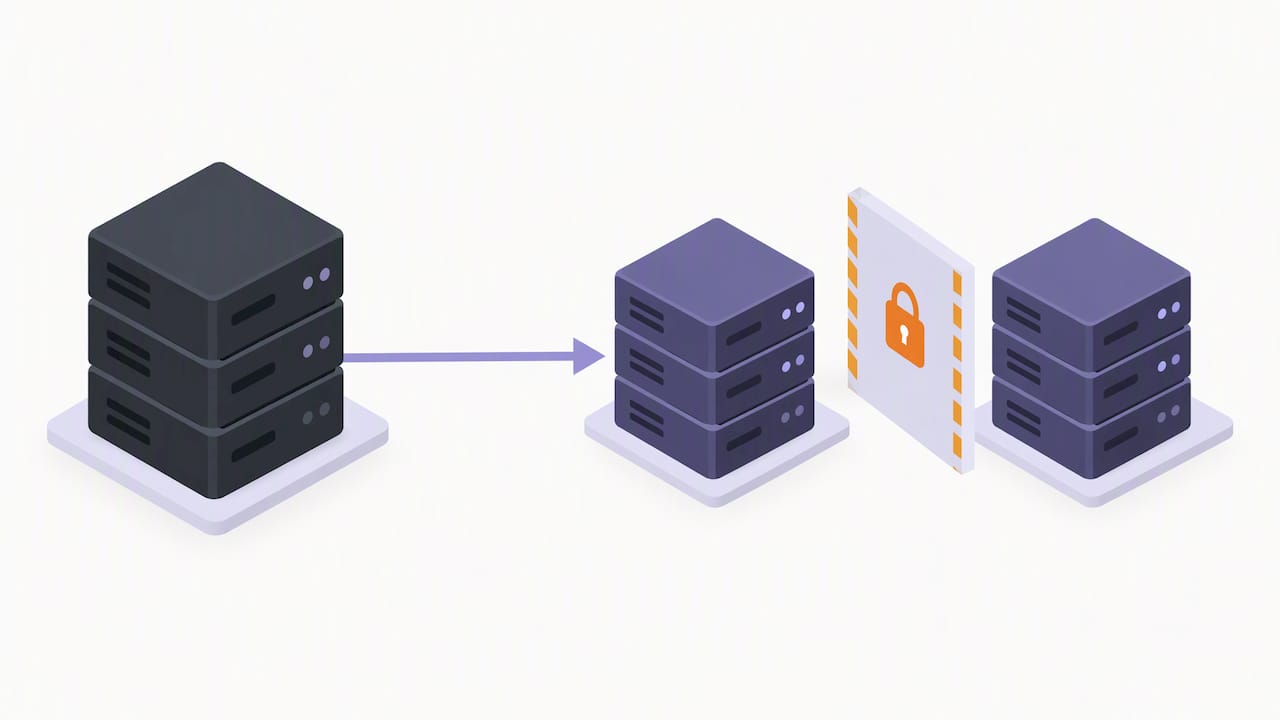
- Store at least one copy offsite and isolated from the live server, so a compromise of the website cannot also wipe out the backup.
- Use separate admin credentials and two factor authentication for whatever system manages your backups, distinct from your WordPress login.
- Test a full restore on a staging environment at least quarterly, and write down the steps so anyone on your team can follow them under pressure.
- Scan backup files for malware before restoring, particularly if you suspect the site was compromised before the backup was taken.
The NCSC’s principles for ransomware-resistant backups recommend exactly this combination: isolated backups, separate credentials, multi-factor authentication for any changes to the backup system, and regular restore testing, because ransomware increasingly targets the backups themselves rather than just the live data.
Pro Tip: Keep one backup copy that nothing with write access to your live site can touch. If ransomware reaches your server, it should not be able to reach your recovery plan too.
Monitoring, logging and incident response
You cannot respond to an incident you never noticed. Log the events that actually matter: login attempts (successful and failed), file changes outside of a normal deployment, plugin and theme installs, and anything done through an admin account. Store those logs somewhere the website itself cannot overwrite them, since an attacker with admin access will often try to cover their tracks first.
Insufficient logging is one of the most common reasons attacks go undetected for long periods. The OWASP project on security logging and alerting failures points out that without reliable logging and alerting, organisations simply cannot detect or investigate an attack properly, which turns a contained incident into a prolonged one.
Build a simple monitoring routine:
- Run an external vulnerability scanner against your site on a schedule, not just once after launch.
- Add uptime and file-integrity monitoring so unexpected changes trigger an alert rather than going unnoticed.
- Keep a short, written incident checklist: isolate the site, run a forensic scan, restore from a known-good backup, rotate every credential, then review what let the attacker in.
- Know in advance when to escalate: your hosting provider for server-level compromise, a security specialist for anything involving customer data, and the NCSC for wider guidance on handling the incident properly.
Plugins, themes and supply-chain hygiene
Every plugin and theme you install is code you are trusting to run on your site, so vet it the same way you would vet a contractor. Check the update cadence (a plugin untouched for two years is a warning sign), the number of active installs, and whether the author has a track record of fixing reported vulnerabilities quickly.
Keep rules simple:
- Maintain a short inventory of every plugin and theme in use, including what each one actually does, so nothing lingers unexplained.
- Remove anything inactive rather than just deactivating it, since dormant code can still be exploited if it stays on the server.
- Always test plugin and theme updates in staging before pushing them live, the same discipline as core updates.
- Limit third-party JavaScript on login pages and checkout flows, where a compromised script has the most to gain, and use a Content Security Policy to restrict what those scripts can load.
Premium, well-reviewed plugins from established developers are generally a safer bet than free alternatives with a thin support history, simply because there is more at stake for the developer if something goes wrong.
Vulnerability management and ongoing governance
Security is not a one-off project, it is a schedule. Put these habits in place and most of the guesswork disappears:
- Set a recurring maintenance window (monthly is reasonable for most sites) and avoid scheduling updates right before a major sales period or campaign launch.
- Run automated vulnerability scans between maintenance windows, and bring in a manual audit or penetration test periodically if the site handles payments or sensitive data.
- Keep an asset inventory of every plugin, theme, user account and integration, and log changes to critical settings so you can trace what changed if something goes wrong.
Assign clear ownership, even if that is just one person, for who actually checks the scan results and applies the patches. A schedule nobody owns tends to slip.
Database security best practices, including prefix changes and access restrictions
Your WordPress database holds everything from user credentials to customer orders, so it deserves its own layer of protection beyond the site’s login screen. Changing the default wp_ table prefix during installation makes automated SQL injection attempts that assume the default prefix less likely to succeed, though it is a minor obstacle rather than a serious barrier on its own.
More meaningful protections include restricting database access to only the IP addresses that need it, such as your web server and any approved admin machines, rather than leaving it open to any connection. Use a dedicated database user with only the permissions WordPress actually needs, rather than a root-level account that could do far more damage if compromised.
Keep database credentials out of version control entirely and store them only in wp-config.php with restricted file permissions. If your hosting environment supports it, enable encrypted connections between your web server and database server, particularly on shared or cloud infrastructure where traffic might cross a network you do not fully control.
Regularly review which plugins have direct database access and whether they genuinely need it. A plugin that can read or write directly to tables beyond its own scope is a bigger risk if it is ever compromised or abandoned by its developer.
Disable file editing within the WordPress dashboard
WordPress ships with a built-in code editor under Appearance and Plugins that lets an administrator edit theme and plugin files directly from the browser. It is convenient, but it is also exactly the tool an attacker wants if they manage to get hold of an admin login, since it gives them a direct route to running their own code on your server.
Turning it off is one line added to wp-config.php:
define('DISALLOW_FILE_EDIT', true);
This removes the editor from the dashboard entirely, forcing any genuine code change to go through SFTP or your deployment process instead, where it is easier to track and reverse. Many security plugins offer the same setting as a toggle if you would rather not edit the file directly.
It is a small change with an outsized benefit: it costs you nothing in day to day site management, since most site owners never use the built-in editor anyway, but it closes off one of the simplest paths from “stolen password” to “full site compromise.”
Security considerations for REST API and XML-RPC
The WordPress REST API powers a lot of modern functionality, from the block editor to mobile apps and headless setups, but some of its endpoints can expose more than you intend by default, including user display names and post data that should stay private. Review which endpoints are publicly accessible and restrict user enumeration endpoints if your site does not need them exposed.
XML-RPC is older and, for most sites, no longer necessary. It was originally built to support remote publishing tools, but it is now mostly known for enabling brute force amplification attacks, where a single request can attempt many password combinations in one go. If you do not use remote publishing or pingbacks, disable XML-RPC entirely, either through your security plugin or at the server level.
If you run a headless WordPress setup where the REST API is doing the heavy lifting as your site’s actual front end, the considerations shift: you need the API available but should lock down which endpoints are public and add proper authentication for anything that writes data. Our piece on headless WordPress covers how that architecture changes the usual security assumptions.
Why defence-in-depth is the sensible approach for small teams
There is no single plugin or setting that makes a WordPress site secure, and anyone promising one is selling you something. Layers work because they catch different failures: updates close known holes, backups undo the damage when something still gets through, and strong logins slow down the attempts in between.
When time or budget is tight, fix the cheapest, highest-impact things first: updates, backups and a password manager cost nothing and take an afternoon. A web application firewall or a penetration test can wait until those basics are solid.
— Amir
AMW Media services for secure WordPress sites
If this list feels like more than you want to manage alongside running your actual business, that is exactly the gap our web design and development work closes. We build WordPress sites with hardening baked in from the start rather than bolted on afterwards, and our maintenance retainers cover update management, backup monitoring and the kind of ongoing checks this guide describes, without a long-term contract locking you in. For developer-level checks on API security during a rebuild, tools like the transcription API security checklist show the kind of testing discipline worth applying to your own integrations. Get in touch through our services page for a straightforward look at where your current setup stands.
Sources
- WordPress
- Passwords in online services | ICO
- Principles for ransomware-resistant on-premises backups | NCSC
- OWASP Top 10 2025 — Security logging and alerting failures
FAQ
Is WordPress outdated in 2026?
No, WordPress remains actively maintained with regular core, security and feature releases. The security risk comes overwhelmingly from outdated installs, unpatched plugins and weak logins, not from the platform itself.
What are the most common security vulnerabilities in WordPress?
The most common weaknesses are outdated plugins and themes, weak or reused passwords without two factor authentication, and misconfigured file permissions. Supply-chain issues from poorly maintained third-party plugins are also a recurring problem, as described by OWASP’s work on logging and detection failures, which notes how undetected compromises often trace back to these entry points.
Does WordPress have security issues?
Like any widely used platform, WordPress has had security issues over the years, mostly concentrated in third-party plugins and themes rather than the core software itself. Keeping everything updated and following the NCSC’s guidance on securing online services addresses the majority of real-world risk.
How can I make my WordPress site more secure?
Start with the basics: update core, plugins and themes, enforce HTTPS, enable two factor authentication and keep a tested, isolated backup. From there, add server-level hardening such as disabling the file editor, restricting database access and putting a web application firewall in front of the site.
What is the single most important WordPress security step?
There is no single step that covers everything, but keeping software updated alongside a tested backup gives you the best protection for the least effort. The NCSC recommends prioritising the most likely entry points, which for most small sites means exactly this combination.
Recommended
- Website optimisation checklist: your 2026 UK guide
- Step by step web design for small businesses: a guide
- Budget £50–£150 a Month: UK Website Maintenance Costs for SMEs
- Website design best practices: top 10 for better UX
Our free marketing audit looks at your site, your ads and your content, and comes back with a 30 day plan. No pitch deck.

Founded AMW Media in 2024 and runs strategy, paid media and the CRM builds. The reason everything here is in house and measured in revenue. Meet the team.