
 Black Steel Doors
 Woodstock Campers
 Phillips Joinery
If your site feels awkward on phones, it is usually down to one of three things: layout, speed, or touch targets. Run a quick Lighthouse audit and Google’s mobile-friendly test, then check the result by hand on a real phone. A genuinely mobile-friendly page loads fast, never forces sideways scrolling, and lets you tap buttons without zooming in first.
TL;DR:
- Run Lighthouse three times and use the middle score, then inspect specific performance opportunities; a passing mobile test still needs real phone checks.
- Compress and resize images, defer nonessential JavaScript, and remove unused scripts first; these changes help visitors on slow connections and budget phones.
- Check viewport settings and fixed width containers immediately, then test around 320 pixels in portrait and landscape to catch sideways scrolling.
- Use touch areas around 48 by 48 pixels, keep key actions visible without extra taps, and verify text resizing and screen reader navigation.
- Repeat audits monthly and compare Core Web Vitals with real visitor field data, because lab scores can diverge on inconsistent mobile networks.
Table of Contents
- Common reasons a website is not mobile friendly
- How to test and diagnose mobile friendliness
- Priority quick fixes you can deploy now
- Design and accessibility considerations for mobile users
- Performance optimisation for mobile and Core Web Vitals
- CMS and platform pitfalls that slow mobile sites down
- A compact action checklist and prioritised roadmap
- How we approach mobile-friendly design
- What a successful mobile-friendly redesign actually looks like
- Tools and techniques for ongoing mobile monitoring
- Why “responsive” does not automatically mean “mobile friendly”
- How we can help you fix a mobile-unfriendly site
- FAQ
- Sources
Common reasons a website is not mobile friendly
Most mobile problems trace back to a handful of repeat offenders. Once you know what to look for, spotting the cause on your own site gets much faster.
The biggest culprit is usually a lack of proper responsive design. Older sites often rely on fixed-width layouts built for a desktop screen, so on a phone the page either shrinks everything into unreadable text or spills off the edge. Google’s guidance on mobile-first indexing recommends responsive design specifically because it serves the same HTML on a single URL, which is simpler to maintain and easier for search engines to understand than separate mobile and desktop versions.
Here is what tends to show up during an audit:
- Fixed-width containers or images that force horizontal scrolling on narrow screens.
- Heavy, uncompressed images and large JavaScript bundles that slow everything down on mobile data.
- Touch targets, like buttons and links, placed too close together or sized for a mouse cursor rather than a finger.
- Navigation menus that hide key calls to action behind extra taps or collapse badly on smaller screens.
- A missing or misconfigured viewport meta tag, which stops the browser from scaling the page correctly in the first place.
Some older sites still use a separate “m.site.com” mobile version or dynamic serving, where the server detects a phone and sends different HTML. Both approaches technically work, but they double the maintenance burden because every design change needs building twice. Responsive design solves this by using one codebase that adapts with CSS, which is why it has become the default recommendation for almost every type of site.
How to test and diagnose mobile friendliness
You do not need to guess where the problems are. A short, repeatable testing routine will show you exactly what is broken and in what order to fix it.
- Start with a Lighthouse audit in Chrome DevTools. Chrome’s own documentation explains that Lighthouse gives you lab-based scores for performance, accessibility, and best practice, which is the fastest way to get a baseline.
- Run your page through Google’s mobile-friendly test to check for viewport errors, text that is too small to read, and touch targets that overlap.
- Open Chrome DevTools device mode and simulate a few screen widths, including the narrowest common one around 320 pixels, checking both portrait and landscape orientation.
- Throttle the network to Slow 4G or 3G in DevTools and reload the page, paying attention to how long it takes before anything useful appears on screen.
- Test on an actual mid-range or budget phone, not just a simulator, and try increasing the text size in your phone’s settings to see whether the layout holds up.
Automated tools are brilliant at catching technical errors, but they cannot tell you whether a button feels fiddly to tap or whether a menu is genuinely confusing. That judgement only comes from using the site yourself on a real device, which is why manual testing on low-end and mid-end phones remains part of a thorough check rather than an optional extra.
When you read your Lighthouse report, the performance score and the specific “opportunities” listed, usually things like unused JavaScript or oversized images, matter more than the single headline number. The mobile-friendly test’s pass or fail result is binary and worth fixing immediately if it fails, since a fail can affect how your pages are indexed.
Pro Tip: Run the test three times and take the middle result, since a single Lighthouse run can vary depending on background load on your machine.
Priority quick fixes you can deploy now
Some fixes take an afternoon and move the needle more than months of bigger engineering work. Start here before anything else.
- Compress images and use
srcsetso phones download a size that actually fits their screen, instead of a desktop-sized file squeezed down by CSS. - Add
loading="lazy"to images below the fold so the browser does not waste bandwidth on content nobody has scrolled to yet. - Defer non-essential JavaScript and inline the critical CSS needed for the first screenful of content, so the page becomes usable before everything else finishes loading.
- Check your viewport meta tag reads
width=device-width, initial-scale=1and remove any fixed-pixel-width containers causing sideways scroll. - Enlarge touch targets and space out buttons, and simplify navigation so the main calls to action are visible without extra taps.
- Audit third-party scripts (chat widgets, tracking pixels, embedded videos) and remove or delay any that are not pulling their weight.
Many regions of the UK still see median mobile download speeds far below the national figure, with some areas closer to 10 Mbps against a national median of around 63.03 Mbps, which means a page built and tested only on fast office wifi can feel completely different to a visitor on the train.
Barnardo’s performance guidance makes the point plainly: large JavaScript bundles and heavy images can make a site genuinely unusable for people on low-end phones or pay-as-you-go data plans, not just slow. If you only have an afternoon, image optimisation and cutting dead scripts usually deliver the biggest visible improvement for the least effort. For a fuller pass, our website optimisation checklist walks through the same priorities in more depth.
Design and accessibility considerations for mobile users
Accessibility and mobile usability overlap more than people expect, as explained in this partner perspective on accessibility and SEO. A site built to WCAG 2.2 standards tends to work better for everyone on a small screen, not just people using assistive technology.
- Give buttons and links a minimum touch area, since WCAG 2.2’s target size guidance sets a baseline that many design teams round up to 48 by 48 pixels in practice to comfortably fit a fingertip.
- Use proper semantic HTML and a logical heading order, and avoid CSS or JavaScript tricks that visually reorder content in a way screen readers cannot follow.
- Maintain strong colour contrast and make sure text can be resized without breaking the layout, and keep help or support links in a consistent place across pages.
- Test with a screen reader and by navigating using only a keyboard, and where possible include people with disabilities in any usability research you run.
The Gov frames mobile as a core design principle rather than something bolted on afterwards, recommending progressive enhancement so a service keeps working even when a device or connection is behind the curve. That mindset, building the simplest reliable version first and layering on enhancements, tends to produce sites that are both more accessible and faster on mobile.
Performance optimisation for mobile and Core Web Vitals
Speed is not just a nice-to-have on mobile, it is measured directly and affects how Google sees your pages. Three metrics make up Core Web Vitals: Largest Contentful Paint (LCP), which measures how long the biggest visible element takes to load; Interaction to Next Paint (INP), which measures how responsive the page feels when tapped; and Cumulative Layout Shift (CLS), which measures how much content jumps around as it loads.
- Prioritise LCP first, since it is usually the easiest to move and the most visible to users: compress your largest image, preload key fonts, and trim anything blocking the critical rendering path.
- Use skeleton screens or placeholder shapes so the page feels like it is loading rather than sitting blank.
- Make sure the first interactive elements, like a search box or a “buy” button, are usable before secondary content finishes rendering.
- Lazy-load anything below the fold so initial render is not competing with content the visitor has not reached yet.
Chrome’s Lighthouse documentation is explicit that lab audits should be paired with field data from real users, because a fast result on your office wifi says little about someone browsing on a train with patchy signal. Performance engineers commonly recommend inlining critical CSS and deferring non-essential JavaScript specifically to protect perceived performance, so the page feels responsive even before every asset has finished loading, a point echoed in recent UK mobile network reporting. For a deeper look at hitting a 75th percentile LCP target, our guide on prioritising Core Web Vitals fixes breaks the targets down further.
CMS and platform pitfalls that slow mobile sites down
If you are running WordPress or a similar CMS, some of your mobile problems might be baked into the platform setup rather than your content.
- Heavy page builders and a long list of plugins each add their own CSS and JavaScript, which stacks up fast and bloats every page’s weight.
- Check your CMS is actually outputting responsive image markup (the
srcsetattribute) rather than a single oversized file for every device. - Set up caching and a content delivery network so static assets load from a server physically closer to the visitor, cutting latency before any code even runs.
- If your theme renders most of the page with client-side JavaScript, a theme change or a partial rebuild may do more for mobile speed than another round of plugin tweaks.
Our guide to fixing Core Web Vitals errors within 28 days covers a practical remediation order for exactly this kind of platform cleanup.
A compact action checklist and prioritised roadmap
Turning everything above into a plan is easier when it is broken into clear time blocks.
- Day 1: run Lighthouse, the mobile-friendly test, and a manual device check; record your baseline scores.
- Day 1: fix any obvious viewport meta tag errors and remove fixed-width containers causing horizontal scroll.
- Week 1: compress and resize images, defer non-critical JavaScript, and enlarge touch targets and spacing.
- Week 1: re-run Lighthouse and the mobile-friendly test to confirm the quick wins moved the scores.
- Quarter: plan any larger architectural work, such as a full responsive redesign or progressive enhancement rebuild.
- Quarter: run accessibility research with real users, including people using assistive technology, and feed findings back into design.
| Timeframe | Focus | Example tasks |
|---|---|---|
| Day 1 | Diagnosis | Lighthouse, mobile-friendly test, baseline metrics |
| Week 1 | Quick wins | Image compression, touch targets, viewport fix |
| Quarter | Structural work | Responsive rebuild, accessibility research |
Set a realistic target rather than chasing a perfect score: a passing mobile-friendly test, a Lighthouse performance score moving upward each quarter, and no horizontal scroll on any common screen width are reasonable markers of progress. Our step-by-step guide to planning a responsive redesign is a useful next read before committing to the bigger quarter-level work.
How we approach mobile-friendly design
Our process always starts with an audit, the same Lighthouse and manual checks covered above, before touching a single line of code. From there we tackle the quick wins first: images, scripts, touch targets, so clients see visible improvement within days rather than months.
Bigger structural work, like a responsive rebuild or a shift to server-side rendering, follows once the quick wins are in and measured. Accessibility testing runs alongside every build rather than as an afterthought, since a site that works well for assistive technology tends to work better for every mobile visitor too. Our team holds certifications across Google, Meta, Shopify, WordPress, and Framer, and you can see examples of this approach across our portfolio of projects.
What a successful mobile-friendly redesign actually looks like
A good redesign rarely announces itself with a dramatic visual overhaul. The most telling sign is quieter: pages that load fast on a train connection, forms that are easy to fill in with a thumb, and navigation that does not need a second tap to find the main action.
The pattern that tends to separate a successful mobile redesign from a disappointing one is sequencing. Teams that fix layout and touch targets before chasing a full visual rebrand usually see usability improve early, which then makes the bigger structural changes easier to justify and measure. Teams that redesign the look first and leave performance for later often end up with a beautiful site that still scrolls sideways on a budget phone.
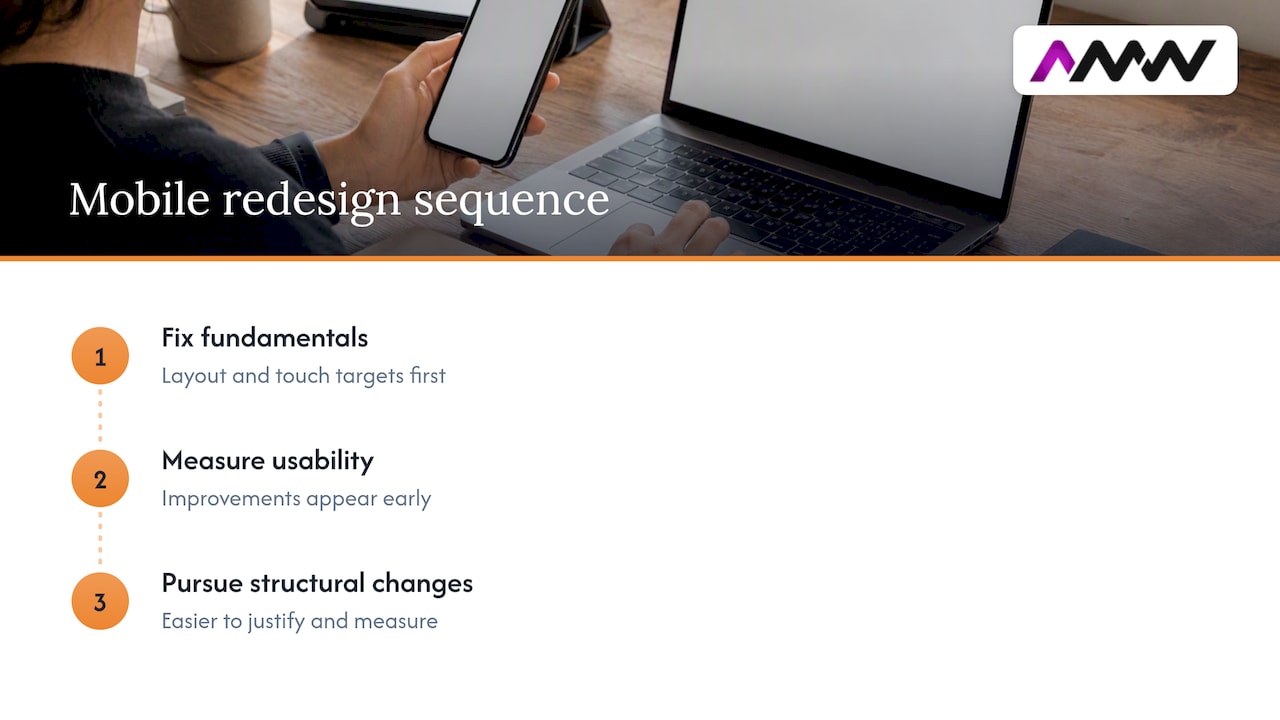
Responsive layouts that collapse gracefully from desktop to a single column, images that are genuinely resized rather than just squeezed by CSS, and navigation that simplifies rather than hides options are the recurring features behind the redesigns that actually move usability numbers. None of this requires novelty for its own sake. It requires getting the fundamentals, covered earlier in this guide, right and in the right order.
Tools and techniques for ongoing mobile monitoring
A one-off audit tells you where you stand today, but mobile usability drifts as plugins update, content grows, and new scripts get added. Building in a regular check prevents the slow creep back toward a clunky mobile experience.
Re-run Lighthouse and the Google mobile-friendly test on a schedule, monthly is reasonable for most sites, rather than only after a redesign. Pair that lab data with field data from real visitors where you can get it, since Chrome’s own Lighthouse documentation is clear that lab scores and real-world field metrics can diverge, particularly on inconsistent mobile networks.
Keep a simple log of your Core Web Vitals scores over time rather than just the latest snapshot, so a regression shows up quickly instead of getting lost in month-to-month noise. Manual spot checks on a real device, done briefly but regularly, catch the kind of small layout drift that automated tools sometimes miss entirely. Treat mobile monitoring the way you would treat uptime monitoring: unglamorous, but the thing that catches problems before customers do.
Why “responsive” does not automatically mean “mobile friendly”
A lot of site owners treat “responsive” as the finish line, and that is where I think the conventional wisdom falls short. Responsive design is necessary, but it is not the same as mobile friendly. A responsive layout that still loads six megabytes of images on 3G, or still buries the “buy” button behind three taps, has technically passed the test everyone talks about while failing the one that actually matters to the person holding the phone.
Speed and tap comfort are what convert visitors and cut support queries, not a tidy breakpoint at 768 pixels. The only reliable way to know if your site works on mobile is to test it on a real, unglamorous, low-end phone, not a simulator set to “iPhone” in DevTools.
— Amir
How we can help you fix a mobile-unfriendly site
If the audit above turned up more than you want to tackle in-house, that is exactly the kind of work we take on daily. We handle everything from a focused performance clean-up to a full responsive rebuild, backed by the same accessibility and testing standards covered in this guide.
- Web design and development, including responsive rebuilds and accessibility-aware builds, detailed on our web design services page.
- Technical SEO and performance work that complements mobile fixes, outlined on our SEO services page.
- A full look at everything we offer, from content production to automation, on our services overview page.
A typical engagement starts with the same audit steps covered above, then moves straight into prioritised fixes agreed with you before any larger work begins. Get in touch through our contact page for a quote.
FAQ
How can I make my website more mobile-friendly?
Start with a Lighthouse audit and Google’s mobile-friendly test to find specific problems, then fix the viewport meta tag, compress images, and enlarge touch targets. These quick wins, covered earlier in this guide, usually deliver the most visible improvement before any bigger rebuild is needed.
Why are websites not opening in mobile?
A site that fails to open properly on mobile usually has a missing or broken viewport meta tag, or relies on a plugin or technology that does not render on mobile browsers. Checking the page in Chrome DevTools device mode will usually reveal the specific error quickly.
How do I view a non-mobile website on my phone?
Most mobile browsers include a “desktop site” option in their menu, which forces the page to load as it would on a computer screen. This can help with viewing, but it does not fix any underlying mobile-friendliness problems on the site itself.
What does it mean to be mobile-friendly?
A mobile-friendly site loads reasonably fast on a mobile connection, displays text and images at a readable size without zooming, and lets visitors tap links and buttons accurately without pinching or scrolling sideways. Google’s mobile-first indexing guidance treats responsive design as the clearest way to achieve this consistently.
Sources
- Mobile sites and mobile-first indexing — Google Search Central
- Gov
- Lighthouse in Chrome DevTools — Chrome Developers
Recommended
- UK Sites: Prioritise Fixes to Reach 75th Percentile LCP ≤2.5s
- Website optimisation checklist: your 2026 UK guide
- Website design best practices: top 10 for better UX
- Fix Core Web Vitals Errors in 28 Days: Field First for UK Sites
Our free marketing audit looks at your site, your ads and your content, and comes back with a 30 day plan. No pitch deck.

Founded AMW Media in 2024 and runs strategy, paid media and the CRM builds. The reason everything here is in house and measured in revenue. Meet the team.